
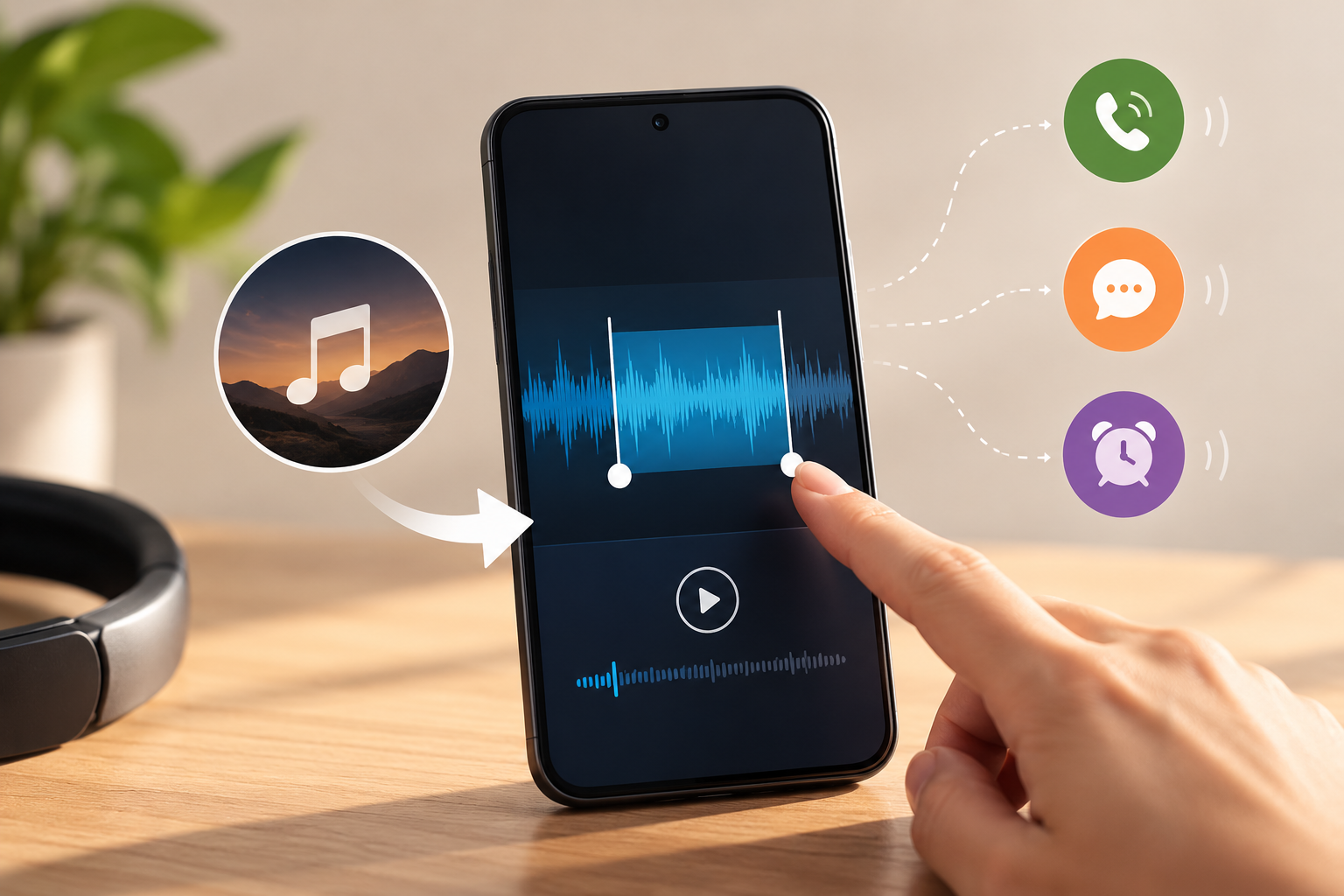
How to Create a Custom Ringtone from Any Song on Android: Complete Guide
Your smartphone is probably one of the most personal devices you have.
It has your photos, apps, messages, contacts, reminders, playlists, and everyday routines. Yet when someone calls, many phones continue to play the same default ringtone that Millions of other people use.
That is why creating a custom ringtone can be such a simple but satisfying change.
Instead of hearing a generic system ringtone, you can choose a favorite instrumental section, a memorable audio clip, a short beat, or another sound stored on your phone and turn it into something that feels more personal.
You do not need professional audio-editing software to do it either.
With a simple ringtone editor, you can choose an audio file, trim the best part, save the clip, and use it as a ringtone, alarm, notification sound, or even a dedicated ringtone for a specific contact.
This guide explains how ringtone creation works, how to choose the best audio clip, what ringtone length works well, and how Android users can personalize calls and alerts without overcomplicating the process.
Why Create a Custom Ringtone?
Most Android phones already include a collection of built-in sounds.
For many people, those default tones are perfectly fine.
But custom ringtones can make your phone feel more personal while also making incoming calls easier to recognize.
Imagine being able to tell whether a family member or close friend is calling without checking the screen.
A different ringtone can act like an audio shortcut.
You hear the sound and already know which type of call is coming in.
Custom ringtones can also be useful when you like only one specific part of a longer audio file.
Maybe the entire track is four minutes long, but the 20-second instrumental section in the middle is the part you really enjoy.
A ringtone maker for Android can help you cut that specific section instead of using the full audio.
This makes ringtone customization both practical and creative.
What Is a Ringtone Maker?
A ringtone maker is a simple audio-editing tool designed to help users create short audio clips suitable for calls, alarms, messages, or notifications.
Unlike professional audio software, it usually focuses on a few straightforward tasks:
choosing an audio file
trimming the beginning and ending
previewing the selected portion
saving the clip
setting it as a ringtone or notification sound
The goal is simplicity.
If you only want to take the best 20 seconds of an audio file and use it as your ringtone, there is no reason to open a complex multi-track audio editor.
A ringtone maker gives you the basic tools you need without unnecessary production features.
What Is an MP3 Cutter?
An MP3 cutter is an audio tool that lets you remove unwanted parts from an MP3 or another supported audio file.
Think of it like cropping a photograph.
When you crop an image, you remove the areas you do not want.
When you trim an audio file, you choose where the sound should begin and end.
Suppose you have a three-minute track.
You like the section between 00:35 and 00:58.
Instead of using the entire file, you can select that section and save only those 23 seconds.
That new clip can then be used for a ringtone or another alert.
Original Audio | Trimmed Audio |
|---|---|
May be several minutes long | Usually a short section |
Includes intro, verse, chorus, outro | Keeps only the part you want |
Designed for full listening | Designed for quick recognition |
May begin quietly | Can start directly at the strongest part |
Not optimized for alerts | Better suited for calls and notifications |
This is why trimming is one of the most important parts of ringtone creation.
How to Make a Custom Ringtone from a Song on Android
The exact steps may vary slightly depending on your Android device and the app you use, but the overall process is usually similar.
Step 1: Choose an Audio File
Start with an audio file already stored on your phone.
This could be:
an MP3
a personal recording
instrumental audio
another supported sound file
Make sure you have permission or the appropriate rights to use and edit the audio.
Choosing a good source file matters because the quality of the final ringtone depends heavily on the original recording.
Step 2: Open the Audio in a Ringtone Editor
Once the file is selected, open it in a ringtone or audio-cutting tool.
You will usually see the audio displayed as a waveform.
The waveform helps you understand where the louder and quieter sections are.
Large waveform peaks usually represent louder or more energetic parts.
Smaller areas may represent silence or softer audio.
Step 3: Select the Best Section
Move the start and end markers around the section you want to keep.
This is where the process becomes creative.
Do not simply choose the chorus because it is the most famous part.
Ask yourself:
Does the clip start clearly?
Is it recognizable within the first few seconds?
Is the volume comfortable?
Does it loop or end naturally?
Would I enjoy hearing it several times a day?
The strongest ringtone is often a short section that immediately grabs your attention.
Step 4: Preview Before Saving
Always preview your ringtone before saving it.
This helps you catch awkward cuts.
For example, the clip might begin halfway through a word or stop suddenly in the middle of a beat.
Moving the start point by just half a second can sometimes make the ringtone sound much smoother.
Step 5: Save and Apply
Once the clip sounds right, save it.
Depending on your device and ringtone app, you may be able to set it directly as:
default ringtone
contact ringtone
notification tone
message alert
alarm sound
An MP3 cutter app can make this workflow easier by keeping trimming and ringtone-setting tools in one place.
What Makes a Good Ringtone?
A good song does not automatically make a good ringtone.
Songs are designed for listening from beginning to end.
Ringtones are designed to get your attention quickly.
That difference matters.
A Good Ringtone Should Start Clearly
If the first five seconds are almost silent, you may miss the call before the recognizable part begins.
Choose a section where the melody, beat, or voice appears quickly.
It Should Be Easy to Recognize
You should know what the sound is within a second or two.
This is especially useful if you assign different tones to different contacts.
It Should Not Be Too Aggressive
A dramatic audio section may sound impressive once, but hearing it repeatedly during the day can become annoying.
Choose something noticeable without being uncomfortable.
It Should Work at Different Volumes
Preview the ringtone at both low and high volume.
A clip that sounds perfect through headphones may sound very different through a phone speaker.
Which Part of a Song Works Best?
There is no single correct answer.
Different audio sections create different experiences.
Audio Section | Ringtone Potential | Reason |
|---|---|---|
Strong instrumental intro | Excellent | Recognizable immediately |
Chorus | Very good | Memorable |
Quiet opening | Weak | May be difficult to hear |
Beat drop | Good | Attention-grabbing |
Spoken dialogue | Depends | Useful for personal contact tones |
Guitar/piano hook | Excellent | Clear and pleasant |
Sudden loud section | Moderate | Can become irritating |
Short melody | Excellent | Easy to recognize |
Long verse | Weak | Usually too slow |
For most people, instrumental hooks and choruses work particularly well because they become recognizable quickly.
How Long Should a Ringtone Be?
There is no strict rule for ringtone length.
However, around 15 to 30 seconds is usually enough.
A ringtone rarely needs to include an entire song section.
The best ringtone length depends more on content than duration.
A 12-second clip can work perfectly if the melody starts immediately.
A 30-second clip may still feel too long if nothing interesting happens during the first ten seconds.
The first few seconds matter most.
Ask yourself:
Would I recognize this ringtone immediately if my phone started ringing from across the room?
If yes, the length is probably fine.
Custom Ringtones for Different Contacts
One of the most practical ringtone features is assigning different sounds to different contacts.
Imagine these situations:
one sound for family
another for close friends
one ringtone for work calls
a unique tone for an important contact
You no longer need to look at your phone every time it rings.
The sound itself becomes information.
This can be particularly useful during work, driving, cooking, or other situations where your phone is not immediately in your hand.
Default Ringtone vs Contact Ringtone
Understanding the difference is simple.
Your default ringtone plays for most incoming calls.
A contact ringtone overrides that default sound for one specific person.
For example:
Caller | Assigned Sound |
|---|---|
General callers | Default ringtone |
Family member | Custom tone A |
Close friend | Custom tone B |
Work contact | Custom tone C |
This gives your call experience another layer of organization.
Notifications Need Different Audio
A ringtone that works for calls may not work for notifications.
Calls generally last longer and need a longer sound.
Notifications are brief.
A notification sound should usually be:
short
recognizable
not too loud
easy to distinguish
A 20-second ringtone would probably be annoying as a message alert.
For notifications, one to four seconds is often more practical.
Ringtones, Notifications, and Alarms Compared
Sound Type | Recommended Style | Typical Length |
|---|---|---|
Call ringtone | Memorable melody or beat | 15–30 sec |
Contact ringtone | Distinctive sound | 10–30 sec |
Message tone | Short sound | 1–3 sec |
App notification | Simple alert | 1–4 sec |
Alarm | Clear and noticeable | Longer |
Reminder | Moderate and recognizable | Short |
Each sound serves a different purpose.
Customizing them separately can make your phone easier to understand without even looking at the screen.
Can You Use a Custom Sound as an Alarm?
Yes, depending on the device and permissions.
The same audio-editing process can be used to create an alarm sound.
But choose your alarm audio carefully.
A gentle ringtone might be perfect for calls but too quiet for waking up.
Morning alarms usually need:
a clear opening
enough volume
repeated recognizable audio
minimal long silence
You can create a separate clip specifically for alarms rather than reusing your call ringtone.
Why Audio Trimming Matters
Many people assume they can simply select a full song as their ringtone.
Technically, that may work.
But it is rarely the best option.
Long audio often includes sections that are unsuitable for calls.
There might be silence.
A slow intro.
A quiet verse.
An awkward beginning.
Trimming removes all of those unnecessary parts.
You control exactly what the caller experience sounds like.
This is what makes a custom ringtone maker more useful than simply choosing a complete audio file.
How to Trim Audio Cleanly
A clean cut makes the ringtone feel more polished.
Start Slightly Before the Beat
If you begin exactly at the strongest beat, the ringtone may sound abrupt.
Starting a fraction of a second earlier can create a more natural opening.
Avoid Cutting Mid-Word
If the ringtone contains vocals, listen carefully to the start and end.
Cutting halfway through a word makes the clip sound unfinished.
Choose a Natural Ending
Not every ringtone needs a fade-out, but a natural musical pause can create a smoother ending.
Preview Several Times
Listen through the clip multiple times.
You will notice small issues that are easy to miss on the first listen.
Common Ringtone-Making Mistakes
Even a simple edit can go wrong.
Here are some common mistakes and how to avoid them.
Mistake | Better Approach |
|---|---|
Choosing a long silent intro | Start near the recognizable section |
Making the ringtone too long | Keep only the strongest part |
Skipping preview | Listen before saving |
Cutting mid-beat | Move the trim point slightly |
Choosing very loud audio | Use a comfortable volume |
Using the same sound everywhere | Separate calls and notifications |
Editing audio without permission | Use content you have rights to edit |
Why Too Many Custom Ringtones Can Become Confusing
Custom sounds can be useful, but there is such a thing as too much customization.
If every contact has a completely different ringtone, remembering them all becomes difficult.
A better approach is to assign custom sounds only to your most important contacts.
For example:
partner
parents
manager
best friend
Everyone else can use the default ringtone.
This keeps personalization useful rather than chaotic.
Use Audio You Already Have
Many people search online for the “perfect ringtone.”
Sometimes the best ringtone is already on your phone.
You may have:
downloaded music you are allowed to edit
voice recordings
personal sound effects
instrumental audio
audio recordings created by you
Turning your own audio into a ringtone makes the result more personal.
It also reduces the need to browse through hundreds of generic ringtone options.
Ringtone Maker vs Full Audio Editor
If your only goal is creating a ringtone, a professional audio editor may be unnecessary.
Feature | Ringtone Maker | Professional Audio Editor |
|---|---|---|
Trim audio | ✓ | ✓ |
Preview audio | ✓ | ✓ |
Save ringtone | ✓ | Often |
Set ringtone directly | Often | Rarely |
Contact tones | Often | Rarely |
Multi-track editing | Usually no | ✓ |
Advanced effects | Limited | ✓ |
Beginner friendly | Usually | Depends |
Professional software is ideal for music production.
A ringtone tool is usually better for quick everyday customization.
Personalize the Incoming Call Screen Too
Audio is only one part of an incoming call.
Visual personalization can make calls easier to identify as well.
The current app experience also includes caller wallpaper and wallpaper personalization options.
That means users can customize both sound and appearance.
Imagine having a dedicated ringtone and visual caller background for an important contact.
The combination makes incoming calls much easier to recognize.
Caller Wallpapers vs Regular Wallpapers
These are slightly different ideas.
A regular wallpaper changes your home or lock screen.
A caller wallpaper changes the visual experience associated with an incoming call or caller theme.
Personalization Type | What It Changes |
|---|---|
Ringtone | Incoming call sound |
Contact ringtone | Sound for one person |
Caller wallpaper | Incoming call appearance |
Home wallpaper | Home screen |
Lock wallpaper | Lock screen |
Notification tone | Alert sound |
Combining these options can make your phone feel much more personalized without changing the actual device.
Why People Still Love Custom Ringtones
Custom ringtones have existed for years.
Yet people still use them.
Why?
Because sound is personal.
We connect songs and melodies with memories.
A certain tune may remind you of a movie, trip, person, game, or period of your life.
Turning that sound into a ringtone gives your phone a little more personality.
There is also a practical reason.
Unique sounds are easier to recognize.
Ringtones as Audio Notifications
A ringtone is essentially an audio notification with more context.
The type of sound tells you something.
It can tell you:
someone is calling
a specific person is calling
a message arrived
an alarm is active
a reminder went off
This is why creating distinct sounds can make a phone easier to use.
Choosing Ringtones for Work
If you use your phone professionally, your ringtone choice matters.
A very loud or comedic ringtone might be fine at home but uncomfortable during meetings.
For work environments, consider:
soft instrumental sounds
short digital tones
subtle melodies
neutral audio
You can still personalize the phone without making the ringtone distracting.
Choosing Ringtones for Family and Friends
Personal contacts give you more creative freedom.
You might choose:
a shared favorite song
funny sound
nostalgic clip
instrumental melody
personal recording
Contact-specific ringtones can make incoming calls feel more recognizable and fun.
How to Keep Your Ringtone Library Organized
As you create more custom sounds, file organization becomes useful.
Use clear names.
Instead of:
audio_cut_27.mp3
try:
family_ringtone.mp3
or:
morning_alarm.mp3
Clear file names make it much easier to find the correct sound later.
You can also separate:
call ringtones
alarms
notification sounds
contact tones
into different folders if your file manager allows it.
What If the Ringtone Does Not Appear?
Sometimes users save an audio file but cannot find it in Android ringtone settings.
Common reasons include:
file saved in an unsupported folder
incorrect audio format
storage permission issues
system settings permission not enabled
device-specific Android restrictions
Try reopening the ringtone app and using its direct “Set as ringtone” option if available.
You can also restart the device after saving the new audio.
Android behavior can vary between manufacturers, so menus may look slightly different.
Permissions and Ringtone Apps
Ringtone apps may ask for permissions depending on which feature you use.
For example:
Storage or media access may be needed to find audio files.
System settings permission may be required to set a ringtone directly.
Contacts permission may be needed if you assign ringtones to specific people.
Permissions should always relate to the feature you are using.
Android lets you review app permissions through system settings.
Do You Need Advanced Editing Skills?
No.
For simple ringtone creation, the process is usually:
Select → Trim → Preview → Save → Apply.
You do not need to understand:
audio mixing
compression
equalization
mastering
multi-track editing
Those skills are useful for professional audio production but unnecessary for everyday ringtone creation.
Simple Ringtone Editing Checklist
Before saving your ringtone, use this checklist:
Check | Question |
|---|---|
Start | Does the audio begin clearly? |
Length | Is it short enough? |
Volume | Is it comfortable? |
Recognition | Can I identify it quickly? |
Ending | Does it stop naturally? |
Purpose | Is it for calls, alerts, or alarm? |
Permission | Do I have the right to use the audio? |
A quick review prevents most common problems.
Final Thoughts
Creating a custom ringtone is one of the easiest ways to personalize an Android phone.
You do not need expensive software or advanced editing knowledge.
You simply choose an audio file you are allowed to use, find the section you like, trim away the unnecessary parts, preview the result, and save it.
From there, the same clip can become:
your default ringtone
a ringtone for a specific contact
notification sound
alarm
message alert
And personalization does not need to stop with audio.
Caller wallpapers and home or lock-screen customization can help give your phone an even more personal identity.
The important thing is not creating the loudest or most complicated ringtone.
It is choosing a sound that works for you.
Something recognizable.
Something you enjoy hearing.
And something that helps your phone feel a little less generic.
Your phone is something you use every day.
There is no reason every call needs to sound exactly like everyone else’s.